

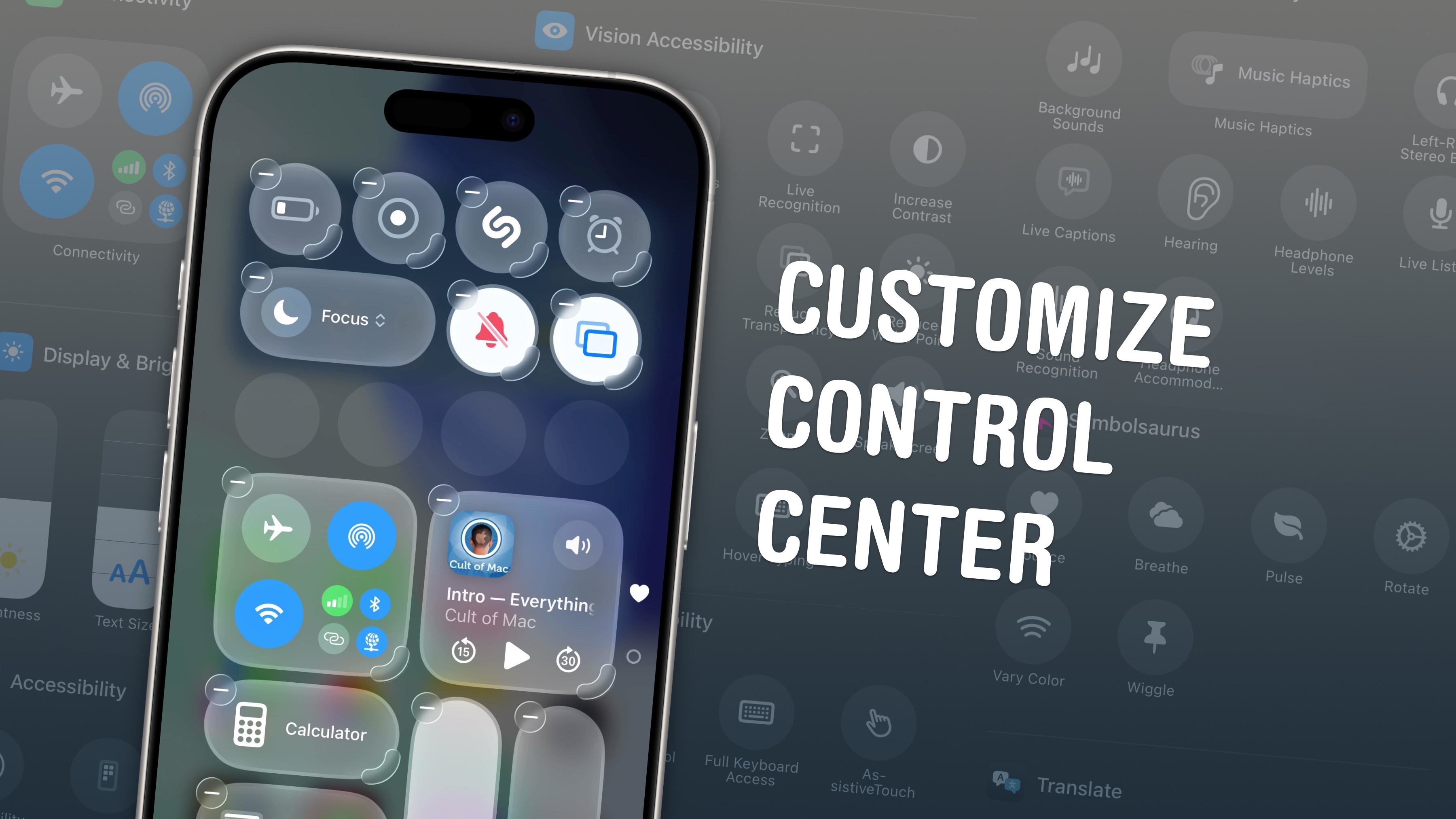
If you want to make your iPhone easier to use, you can customize its Control Center to gain faster access to the buttons and toggles you rely upon to perform frequent tasks.
Plus, you can remove all the junk you never touch from the iPhone Contol Center, putting the vital controls you actually use front and center.
Keep reading to find out how and why you should customize the iPhone Control Center to make the device your own.
How to customize the iPhone Control Center
As Apple says, the iPhone’s Control Center “gives you instant access to the things you do the most.” It puts various toggles and buttons at your fingertip, so you can quickly turn on a Focus mode, adjust your screen brightness, switch on Airplane Mode and more. (See the complete list of available controls on Apple’s support page.)
Once you customize the Control Center to your liking, all your favorite iPhone controls will be just a quick downward swipe away.
Things got even better when Apple released iOS 18 in 2024. Now you can change almost everything in the iPhone’s Control Center.
You can adjust the size and position of your iPhone’s media playback buttons, connectivity controls and more. Also, you can add many more controls than before — and resize them to make them more accessible if you want. You can even organize your buttons across multiple pages.
In iOS 17 and earlier versions, you can customize your iPhone’s Control Center, too. However, you will find fewer options. And you must dig into the Settings app to locate them.
Table of contents: How to customize the iPhone Control Center
- How to open Control Center
- Add or remove controls from your iPhone’s Control Center
- Resize controls and organize into separate pages
- Customize iPhone Control Center in older versions of iOS (17 and earlier)
- More ways to customize your iPhone
How to open Control Center
In order to make changes to the Control Center, first you must open it. On an iPhone with a full-screen display without a Home Button (iPhone X, XS, 11 or later), you swipe down from the top-right corner of the display. On an older iPhone with a Home Button, you swipe up from the bottom of the screen.
With the multipage Control Center layout introduced in iOS 18, you can continue swiping up or down with your thumb to scroll through the different pages in one fluid motion.
Add or remove controls from your iPhone’s Control Center
Screenshot: D. Griffin Jones/Cult of Mac
Ready to tweak your iPhone’s Control Center to your liking? First, open the Control Centerthen tap the + button at the top left of the screen (or tap and hold an empty part of the screen). Either one will begin the editing process.
Next, tap Add a Control at the bottom of the screen to add a new button. You’ll see a panel slide up from the bottom with a big palette full of buttons and toggles. Scroll through the list to see all the controls offered by every app. Alternatively, can search for what you’re looking for up top. Select any control, and it’ll be added to the first available space in your iPhone’s Control Center. Tap the – button in the top left to remove any icon or widget you don’t think you’ll use.
Then you can tap and drag on a control to move it around in your iPhone’s Control Center. Similar to the Home Screen, you can place the controls anywhere you want. But as soon as you have a bunch of controls next to each other in a row, removing one from the middle will cause the rest to shuffle around.
Moving larger widgets can cause everything else to jump around rather unexpectedly, so I recommend you start by putting any 2×2, 4×2 or 4×4 widgets in place before you touch anything else.
Resize controls and organize into separate pages
Screenshot: D. Griffin Jones/Cult of Mac
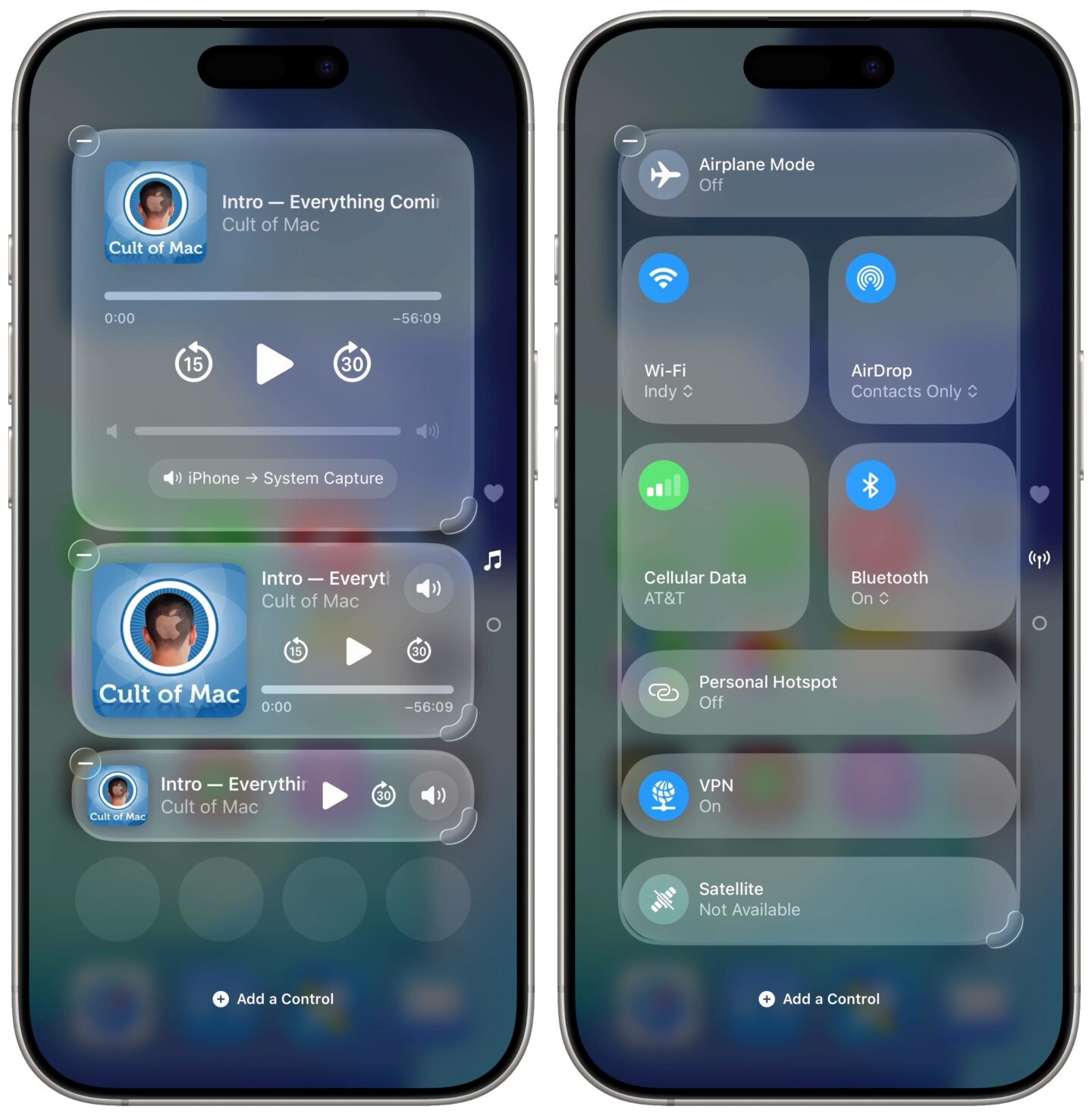
Next, you probably will want to organize the layout of your iPhone’s Control Center. To resize a widget, just drag its bottom-right corner. Some widgets, like Now Playing or Home, gain additional features or add more controls when you make them bigger. Some, like Now Playing or Connectivity, can be expanded to fill the entire screen. Others, like Focus, cannot be resized.
When editing the Control Center, you can swipe down to create a new page. You can’t reorder the pages, so you need to create them in the order you want them in. To delete a page, you need to remove all of its controls.
Personally, I use only one page. I like to swipe down in the Control Center with my right thumb, tap to toggle the button I want with my left thumb, and swipe back up in one fluid, two-handed gesture. If you set up multiple pages, this won’t work — tapping with your second finger doesn’t interact with the controls on your screen, it selects the current page and interrupts the swipe gesture.
If you stick with a one-page Control Center, you can learn this two-handed trick. I arranged my one-page Control Center pretty similarly to the default layout, but with the Connectivity and Now Playing widgets lower on the screen to make them more reachable.
Customize iPhone Control Center in older versions of iOS (17 and earlier)

Screenshot: D. Griffin Jones/Cult of Mac
In older versions of iOS, you can customize iPhone’s Control Center — Apple just doesn’t give you as many options. To do so, open Settings > Control Center. You’re limited to a single page and a smaller set of built-in system controls. And you can’t move or resize the media playback or connectivity controls.
Still, you can add controls you want and delete any you don’t want. To add one of the available controls in iOS 17, tap the green + button to the left of the item. Reorder the controls by dragging the grabber on the right. To remove an item from your iPhone’s Control Center, tap the red – button next to an item in the section above.
More ways to customize your iPhone
- You can fully customize your iPhone’s Home Screen. You can place icons anywhere on the screen. Plus, fans of dark mode can now enjoy alternate dark mode icons. If you have a color theme you want to match, you can tint icons to any hue you want.
- StandBy mode turns your phone into a smart display when it’s sitting on your desk, your nightstand or the kitchen counter.
- Customize your iPhone’s Lock Screen with a bunch of widgets, aesthetics and styles. You have loads of fonts, colors, styles and themes available.
- Change out the Lock Screen buttons from the standard Flashlight and Camera to whatever you want. There’s a giant selection of buttons you can swap in their place.
- Create Focus modes to customize notification settings for different times of day, like work, vacation, driving, personal time and more.
We originally published this article on how to customize Control Center on iPhone in iOS 18 on July 24, 2024. We updated it with the latest information on January 24, 2026.

D. Griffin Jones is a writer, podcaster and video producer for Cult of Mac. Griffin has been a passionate computer enthusiast since 2002, when he got his first PC — but since getting a Mac in 2008, he hasn’t turned back. His skills in graphic and web design, along with video and podcast editing, are self-taught over 20+ years. Griffin has a bachelor’s degree in computer science and has written several (unpublished) apps for Mac and iOS. His collection of old computers is made up of 40+ desktops, laptops, PDAs and devices, dating back to the early ’80s. He brings all of these creative and technical skills, along with a deep knowledge of Apple history, into his work for Cult of Mac.

